How do I switch from Wi-Fi to a mobile hotspot?
When to switch to a mobile hotspot
- The experience won't load, or the conversation doesn't connect.
- The Network connection test in the setup check doesn't pass.
- You're on a company or public Wi-Fi network that may block audio and video calls.
Before you switch
- A hotspot uses your phone's mobile data. Check your data plan first, as your conversation uses data for the whole session.
- Choose Audio Only instead of Video Mode to use less data.
- Keep your phone close to your computer and plugged in to charge, if you can.
Turn on your phone's hotspot
- On an iPhone, go to Settings > Personal Hotspot and turn on Allow Others to Join.
- On an Android phone, go to Settings > Network & internet > Hotspot & tethering and turn on Wi-Fi hotspot. The menu names can be slightly different depending on your phone.
- Note the hotspot name and password shown on your phone.
Connect your computer to the hotspot
- On your computer, open your Wi-Fi settings.
- Select your phone's hotspot name and enter the password.
- Once you're connected, refresh the Lexarius page.
Check your connection
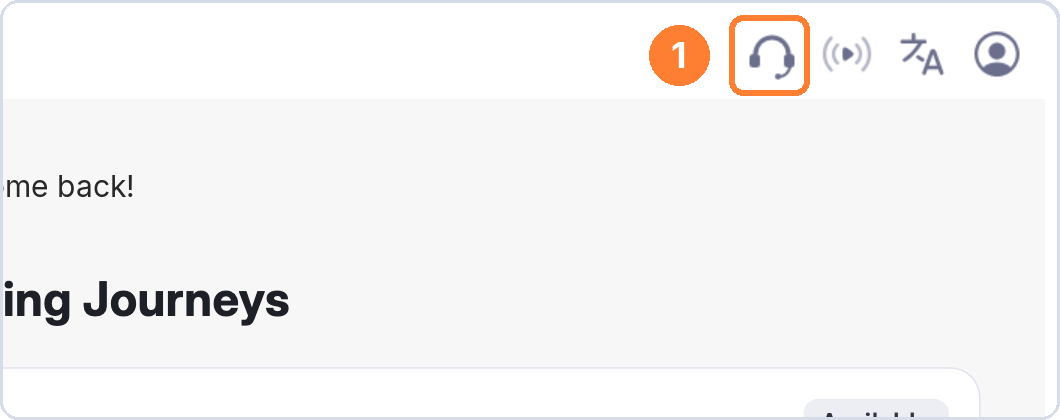
- Click the setup check icon (headphones) in the top bar.
- Next to Network connection, click Test and wait about 15 seconds.
- If you see Your connection supports audio and video calls, you're ready to start your conversation.
- If the test still doesn't pass, see How do I check my conversation connectivity?.