How do I check my conversation connectivity?
Test your conversation connectivity
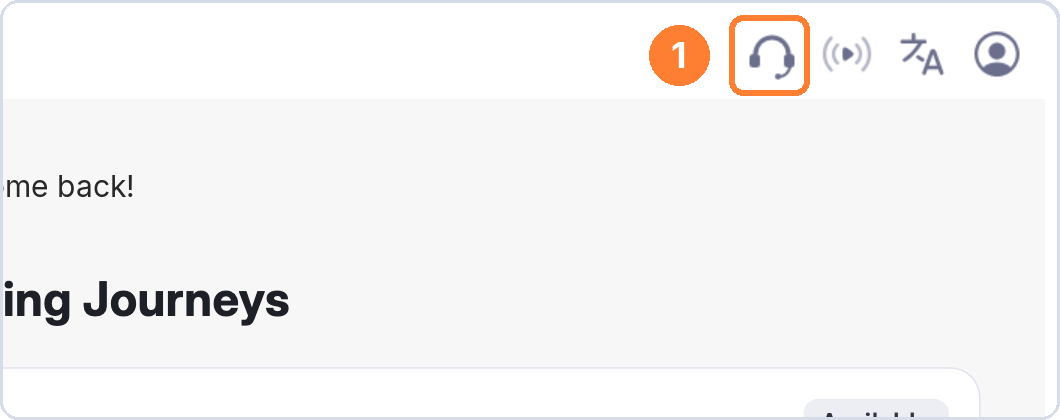
- On the page where you choose your persona, click the setup check icon (headphones) in the top bar.
- Next to Network connection, click Test.
- Wait about 15 seconds while the test checks your connection.
Read your results
- If your connection is ready, you'll see a green tick and Your connection supports audio and video calls.
- RTT is how quickly your connection responds. For video, it should be 200 ms or less.
- Loss is how much of your audio and video gets lost along the way. For video, it should be 5% or less.
- Bitrate is how much data your connection can send. For video, it should be 500 kbps or more.
If your connection isn't ready
- Choose Audio Only instead of Video Mode, as it needs less from your connection.
- Move closer to your Wi-Fi router, or use a wired connection if you can.
- Close other browser tabs, apps, and downloads that use your internet.
- If you're on a company network, it may block audio and video calls. Ask your IT team to allow Lexarius, or switch to a mobile hotspot (see How do I switch from Wi-Fi to a mobile hotspot?).
- Click Re-test to check your connection again.